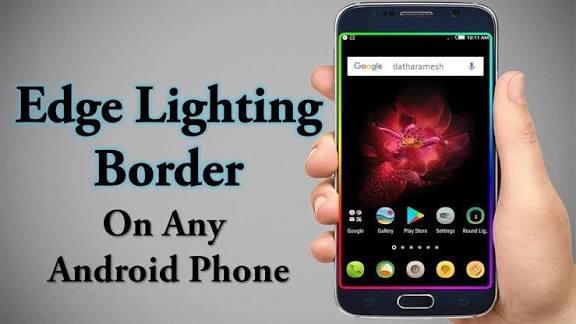
How to Add Lighting Borders on Your Android Phone –
Adding lighting borders to your Android phone has become one of the hottest customization trends, especially for users who love giving their device a stylish, modern, and eye-catching look. Lighting borders appear on the screen edges whenever you receive calls, notifications, or messages, making your smartphone look unique and visually appealing. Whether your phone has a punch-hole camera, notch design, or a flat screen, this feature works perfectly with almost all Android devices. In this detailed guide, you will learn exactly how to add these lighting borders using simple apps, without needing root access or any complex settings.
To begin with, you need to install a trusted edge-lighting application from the Play Store. The most popular options include Edge Lighting – Edge Screen, Always on Edge (AOE), and Edge Lighting Colors. These apps allow you to apply glowing borders around your display and customize them according to your taste. After installing the app, open it and grant the necessary permissions such as “Draw over other apps,” “Notification access,” and “Battery optimization off.” These permissions are important because they allow the lighting effects to appear even when your screen is locked or when you are using another app.
Once permissions are enabled, you can start setting the lighting style. Most apps offer multiple customization choices, including border thickness, glow intensity, movement style, speed, and color combinations. You can choose a single color like blue, red, or pink, or select multi-color gradients that shift and move around the edges for a premium look. If you want more advanced effects, you can enable rainbow lighting, pulse effects, neon borders, or smooth wave animations that react when notifications arrive. These settings allow you to create a unique personal style that suits your personality and phone theme.
Another great feature these lighting apps offer is notification control. You can choose which apps should trigger the lighting border. For example, you may want lighting effects only for WhatsApp messages, incoming calls, or specific social apps. This also helps save battery because unnecessary notifications will not activate the lights. Additionally, some apps provide lock-screen lighting, camera-cutout glow, ringtone sync, and even music-reactive borders that dance with your audio playback.
After finalizing your settings, make sure to test the lighting by sending a message from another phone or enabling the app’s “Test Effect” option. If the effect does not show, double-check permissions or turn off battery saver mode, as it sometimes blocks animation apps from running in the background. With everything properly configured, your phone will now display beautiful glowing edges every time a notification arrives.
Lighting borders not only enhance your phone’s look but also help you notice messages more quickly without always checking your screen. It’s a cool, trendy, and practical customization that gives your Android device a fresh new identity.


